Interactive CLI
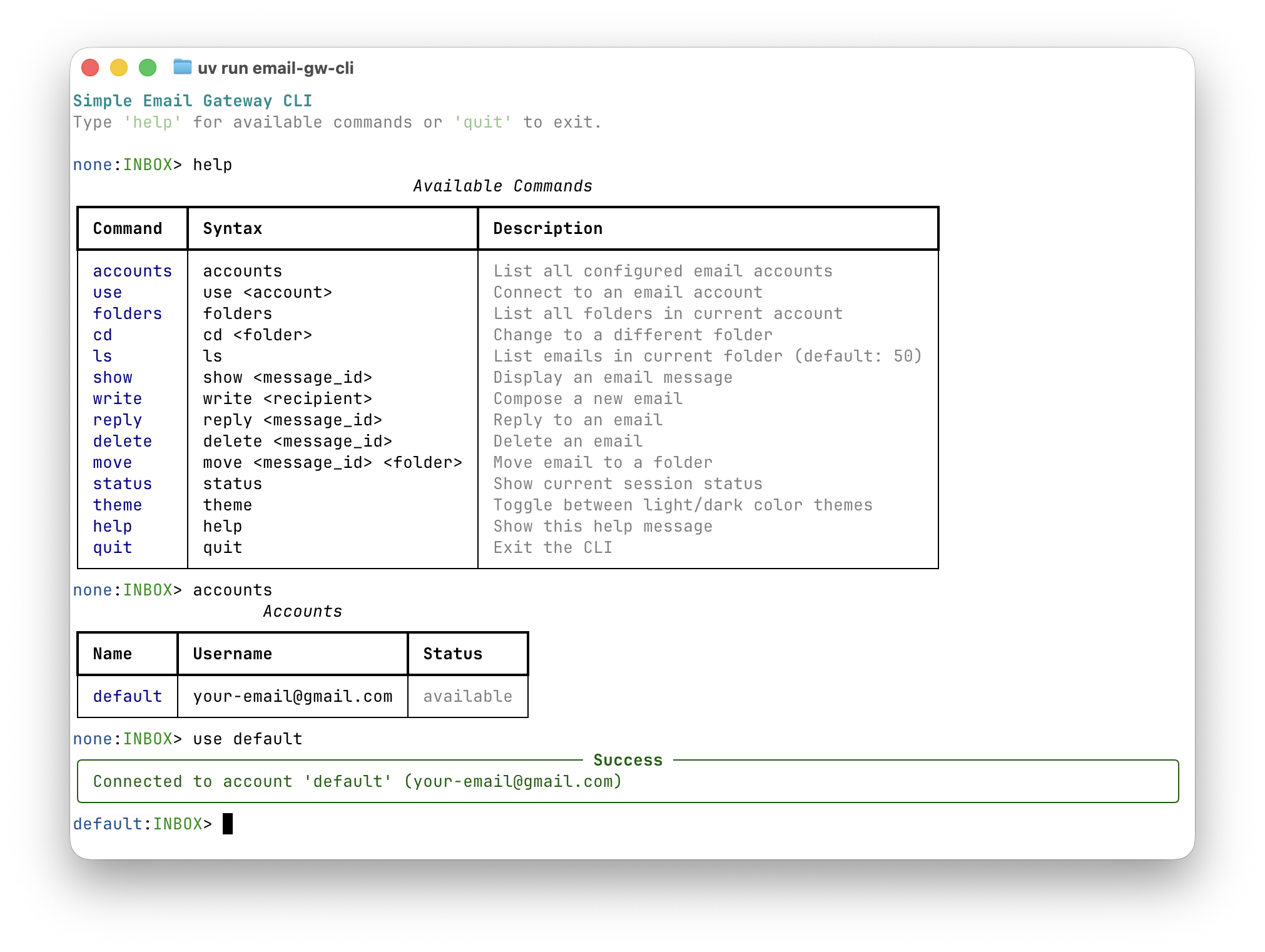
The simple-email-gw package includes an interactive command-line interface (CLI) for managing email operations directly from your terminal.
Overview
The CLI provides a user-friendly interface for common email operations:
Browse email accounts and folders
View and search emails
Compose and send new emails
Reply to emails
Manage email folders
Installation
The CLI is included with the package. Install using pip or uv:
# Using pip
pip install simple-email-gw

# Using uv
uv add simple-email-gw
Configuration
Environment Variables
The CLI automatically loads configuration from a .env file in the current directory. Copy .env.example to .env and configure your email accounts:
# Copy the example configuration
cp .env.example .env

# Edit with your email account details
nano .env  # or use your preferred editor
Single Account
Configure a single email account using environment variables:
EMAIL_IMAP_HOST=imap.gmail.com
EMAIL_SMTP_HOST=smtp.gmail.com
EMAIL_USERNAME=your-email@gmail.com
EMAIL_PASSWORD=your-app-password
Multiple Accounts
Configure multiple accounts using JSON format:
EMAIL_ACCOUNTS_JSON='[{"name":"work","imap_host":"imap.gmail.com","smtp_host":"smtp.gmail.com","username":"work@example.com","password":"secret"},{"name":"personal","imap_host":"imap.icloud.com","smtp_host":"smtp.icloud.com","username":"personal@icloud.com","password":"secret"}]'
Starting the CLI
Run the CLI using the installed entry point:
# If installed with pip
email-gw-cli

# If running from source
uv run email-gw-cli
Basic Commands
Getting Help
Display all available commands:
none:INBOX> help
The help command shows:
Command - The command name
Syntax - How to use the command
Description - What the command does
Listing Accounts
View all configured email accounts:
none:INBOX> accounts
This displays a table showing:
Name - Account identifier
Username - Email address
Status - Connection status (
availableorconnected)
Selecting an Account
Connect to an email account:
none:INBOX> use <account_name>
Example:
none:INBOX> use work
Connected to account 'work' (work@example.com)
work:INBOX>
Once connected:
The prompt changes from
none:INBOX>toaccount_name:INBOX>The account status shows
connectedin the accounts listEmail commands become available (folders, ls, show, etc.)
Theme Customization
Toggle between light and dark color themes:
none:INBOX> theme
The CLI supports two themes:
Light theme - Optimized for white/light terminal backgrounds (default)
Dark theme - Optimized for black/dark terminal backgrounds
The theme affects:
Text colors (account names, folder names, email IDs)
Status indicators (read/unread, connected/available)
Help and status panel colors
Checking Status
View current session status:
work:INBOX> status
This shows:
Account - Current account name and email
Folder - Current folder
Connection - Connection status
IMAP/SMTP Server - Server addresses (when connected)
Command History
The CLI automatically saves your command history to ~/.email_gw_history. Use:
↑/↓ arrows - Navigate through previous commands
Ctrl+R - Search through command history
History persists across sessions
Exiting the CLI
Exit the CLI using:
work:INBOX> quit
Or press Ctrl+D to exit.
Color Themes
Light Backgrounds (Default)
Optimized for white/light terminal backgrounds:
Uses darker colors for better contrast
Account names: dark blue
Folder names: dark green
Secondary text: grey (not dim)
Error/success/warning: dark red/green/yellow
Dark Backgrounds
Optimized for black/dark terminal backgrounds:
Uses bright colors for better contrast
Account names: cyan
Folder names: green
Secondary text: dim
Error/success/warning: red/green/yellow
Switch between themes using the theme command to match your terminal background.
Next Steps
After connecting to an account, you can:
List folders with
foldersBrowse emails with
lsView emails with
show <id>Compose new emails with
write <recipient>Reply to emails with
reply <id>
See the command reference in the help menu for all available commands.
Environment File Example
Create a .env file in your project directory:
# Single account configuration
EMAIL_IMAP_HOST=imap.gmail.com
EMAIL_SMTP_HOST=smtp.gmail.com
EMAIL_USERNAME=your-email@gmail.com
EMAIL_PASSWORD=your-app-password

# Optional: Multiple accounts
# EMAIL_ACCOUNTS_JSON='[...]'

# Optional: Rate limiting
# EMAIL_RATE_LIMIT_REQUESTS_PER_MINUTE=60
# EMAIL_RATE_LIMIT_SENDS_PER_HOUR=100

# Optional: Recipient whitelist
# EMAIL_RECIPIENT_DOMAINS=gmail.com,icloud.com
# EMAIL_RECIPIENT_ADDRESSES=admin@company.com
Security Notes
The
.envfile is automatically ignored by git (see.gitignore)Use app-specific passwords for Gmail and other providers
Never commit your
.envfile to version controlRecipient whitelists help prevent accidental emails to unintended recipients
Troubleshooting
No accounts configured
Make sure you’ve created a .env file with your email configuration:
cp .env.example .env
# Edit .env with your email details
Connection failed
Verify your IMAP/SMTP host addresses
Check your username and password
Ensure you’re using an app-specific password (for Gmail, iCloud, etc.)
Verify TLS is supported by your email provider
Theme colors hard to read
If colors are hard to read on your terminal background, switch themes:
none:INBOX> theme
Toggle between light and dark themes until you find one that works well with your terminal.